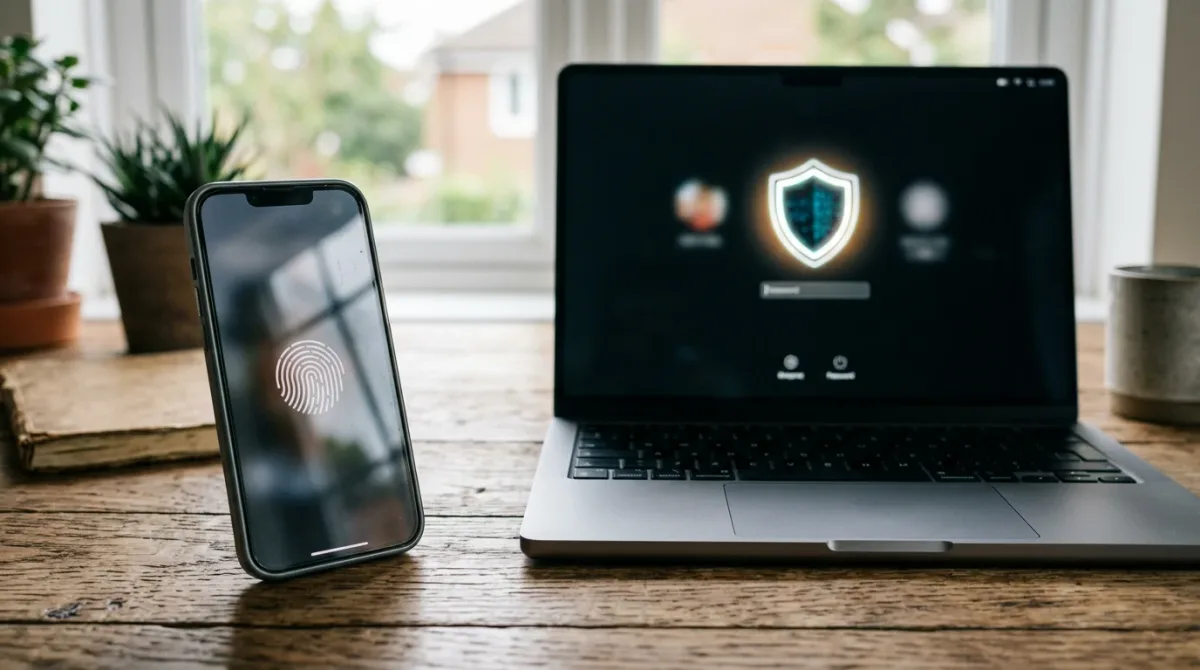
Yes — you can turn on two-factor authentication for a Google or Microsoft account in under ten minutes each, and a passkey or authenticator app is a stronger second step than a text-message code. The federal Cybersecurity and Infrastructure Security Agency says users who enable multi-factor authentication (MFA) are significantly less likely to have an account taken over, even after a password leaks (CISA, MFA guidance, cisa.gov). Start with the email account attackers would use to reset everything else, then move to your cloud and financial logins.
Which accounts need this first?
CISA's MFA guidance names email, financial services, social media, online retailers, and streaming platforms as the priority accounts for multi-factor authentication, because a compromised email account is usually the key that unlocks password resets everywhere else. If you can protect only one account today, protect the inbox tied to your other logins. From there, work down to your bank, your primary cloud account — Google or Microsoft — and any account that stores payment information.
A password alone is "something you know," and it can be phished, guessed, or leaked in a breach you had nothing to do with. Adding a second factor — something you have, like a phone or security key, or something you are, like a fingerprint — means a stolen password by itself is no longer enough to get in. That's the entire point of turning this on, and it takes minutes per account.
How do I turn on 2FA for a Google account?
Google's own account-help documentation lays out the setup path directly:
- Go to myaccount.google.com and sign in.
- Select "Security & sign-in."
- Under "How you sign in to Google," click "Turn on 2-Step Verification."
- Follow the on-screen prompts to pick your method and confirm it.
Google's documentation recommends a passkey as the default method — it enables passwordless sign-in using your device's fingerprint reader, face scan, or screen lock, and it can't be phished the way a code can. If you'd rather keep a password and add a second step, Google also supports push-style prompts on a signed-in Android or iPhone, a verification-code app like Google Authenticator for when you're offline, and SMS or voice codes as a fallback. Download the printable backup codes before you finish setup — you'll need them if you lose your phone. One practical note from Google's own guidance: trusting a newly added phone number for verification can take up to seven days, so add it before you need it, not during an emergency.
How do I turn on 2FA for a Microsoft account?
Microsoft's account-support documentation gives a similar path for a Microsoft account:
- Go to account.microsoft.com/security and sign in.
- Select "Manage how I sign in."
- Under "Additional security" and "Two-step verification," choose "Turn on."
- Follow the prompts, which include scanning a QR code with your device to link an authenticator app.
Microsoft's documentation lists email address, phone number, and an authenticator app as the available second-step methods, and it recommends keeping at least three separate security-info entries on file so a single lost device or changed number doesn't lock you out. It's also worth knowing that Microsoft says it is phasing out SMS as a sign-in and account-recovery method for personal Microsoft accounts, so an authenticator app is the more future-proof choice over a text code. One more detail from the same documentation: if you forget your password after turning on two-step verification, getting back in requires proving control of two of your contact methods at once, not just one — which is a good reason to keep those methods current.
Which method should I pick?
Not all second factors resist the same attacks. CISA's guidance is explicit that it "urges all organizations to start planning a move to FIDO" — the passkey standard — because a phishing site that tricks someone into entering credentials still gets blocked by a passkey, since the cryptographic check is tied to the real site's address. Where a passkey isn't yet an option, CISA recommends number-matching push prompts as an interim step, specifically to stop "push bombing," where an attacker spams approval requests hoping a tired user taps "yes" by mistake.
| Method | Resists phishing | Works without signal | Setup effort |
|---|---|---|---|
| Passkey | Yes — CISA's top recommendation | Yes | Low, once per device |
| Authenticator app | Partial | Yes | Low |
| Push notification prompt | Partial — number matching helps, per CISA | No | Low |
| SMS or voice code | No | No | Lowest, but weakest |
SMS still beats having no second factor at all, and it's the fastest way to get protected today if that's your only option. But treat it as a starting point, not the destination — both Google's and Microsoft's own setup flows steer new users toward a passkey or an authenticator app first, and Microsoft is actively retiring SMS for personal-account sign-in and recovery.
What should I do right now?
Work through these four steps in order, starting today:
- Turn on two-factor authentication for your primary email account first — it's the account that resets every other password.
- Choose a passkey or authenticator app over SMS wherever the account offers it.
- Download or print your backup codes and store them somewhere that isn't your phone, in case the device itself is lost or stolen.
- Add a second recovery method — a second email or phone number — so one lost device can't lock you out entirely.
None of this requires new hardware or a paid product. It requires ten minutes per account and a willingness to stop relying on a password alone.
For a related response perspective, read DeFi Technologies Completes Acquisition of Leading Digital Asset Liquidity Provider Deutschland - Deutsch.
For more context, read Tech Giant: Data and Google.
For more context, read marriott.
For more context, read marriott.