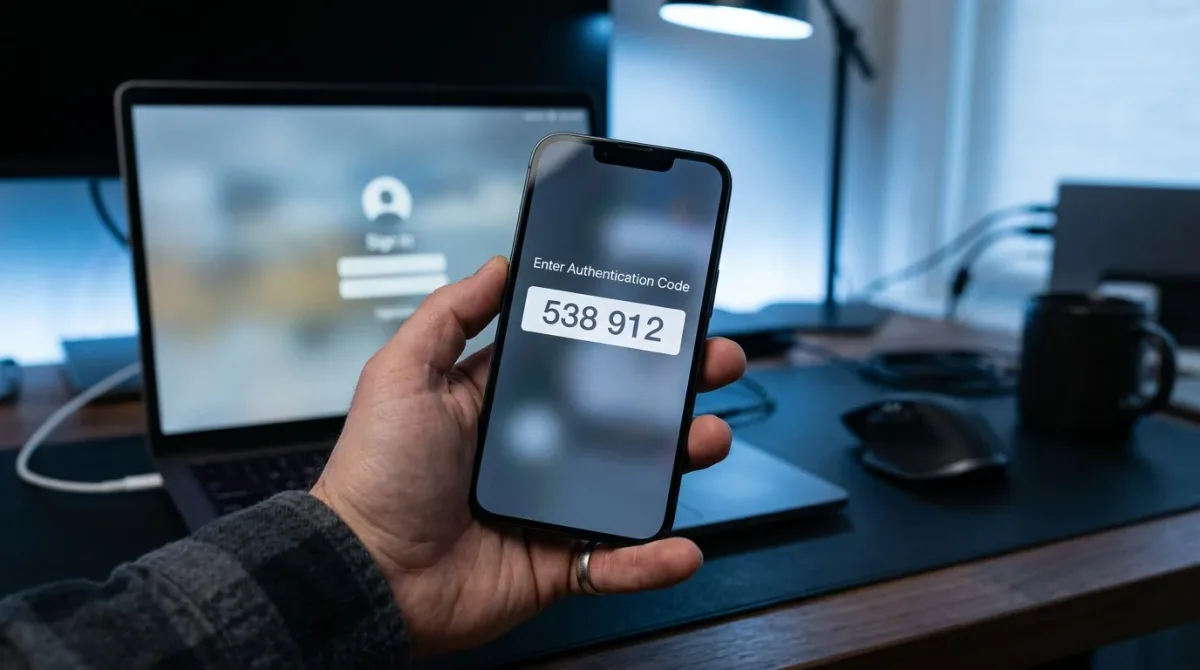
Yes — you can turn on two-factor authentication on your Google, Microsoft, and Apple accounts in under ten minutes each, and every major provider offers it for free. Enabling it is one of the single most effective steps you can take, because a stolen or guessed password stops being enough on its own to get into your account.
Two-factor authentication (2FA) requires a second proof of identity beyond your password — a code, a prompt, or a physical key — before a new device can sign in. The Cybersecurity and Infrastructure Security Agency, the federal government’s lead civilian cyber-defense agency, promotes it as a core safeguard for everyday accounts.
Why does two-factor authentication matter?
Passwords alone are a weak line of defense. CISA notes that the most common password in the country is still 123456 — a string a basic guessing script cracks instantly. Once a password is guessed, phished, or exposed in a data breach, 2FA is usually what stops the takeover: the attacker has the password but not the second factor sitting on your phone or device.
CISA’s own guidance states that turning on MFA makes an account 99% less likely to be compromised. That figure covers all forms of MFA, not just the strongest ones — which is why the specific method you pick still matters.
Which 2FA method should I choose?
Not all 2FA is equally strong. CISA’s phishing-resistant MFA fact sheet, published in October 2022, ranks passkeys and physical security keys above app-based codes, and app-based codes above text messages, because each is progressively harder for an attacker to intercept or trick you into handing over.
| Method | How it works | Phishing-resistant? | Best for |
|---|---|---|---|
| SMS or voice call code | A one-time code is texted or read out to a phone number on file | No — CISA lists SMS and voice codes as vulnerable to phishing, SIM-swap, and SS7 network attacks | Better than no 2FA; use it if it’s the only option a service offers |
| Authenticator app code | An app generates a new numeric code roughly every 30 seconds | No — CISA still classifies app-based one-time codes as phishable if you’re tricked into typing one into a fake site | Most everyday accounts; a solid default |
| Passkey or security key | A cryptographic credential tied to your device or a physical USB/NFC key, built on the FIDO/WebAuthn standard | Yes — CISA calls FIDO/WebAuthn authentication the “gold standard” because it can’t be redirected to a fake login page | Your most sensitive accounts: primary email, banking, password manager |
SMS still beats having no second factor at all, so use it if it’s genuinely the only method a service offers. But where you have a choice — and Google, Microsoft, and Apple all give you one — an authenticator app or a passkey closes a gap that text messages leave open.
How do I turn on 2FA on a Google account?
Open your Google Account settings, go to Security, and turn on 2-Step Verification. The process takes about five minutes and lets you choose between a Google prompt, an authenticator app, a passkey, or a physical security key, per Google’s 2-Step Verification setup instructions.
- Go to myaccount.google.com and sign in. You’ll land on your Google Account overview.
- Select “Security” in the left-hand menu. You’ll see a “How you sign in to Google” section.
- Under that section, select “2-Step Verification,” then “Get started.” You’ll be asked to re-enter your password to confirm it’s you.
- Follow the on-screen steps to add a method. Google’s default is a prompt sent to a phone already signed into your Google account; you can also add Google Authenticator (or another code-generating app), a passkey, or a physical security key. You’ll see a confirmation once a method is added.
- Generate and save your backup codes before closing the page. Google issues a set of one-time backup codes for the moments your phone isn't available.
How do I turn on 2FA on a Microsoft account?
Sign in at account.microsoft.com/security, select “Manage how I sign in,” and turn on two-step verification under “Additional security.” Microsoft’s setup walks you through pairing the Microsoft Authenticator app, and the company is phasing out SMS as a verification option for personal accounts, according to Microsoft’s two-step verification support page.
- Go to account.microsoft.com/security and sign in. You land on your account’s Security dashboard.
- Select “Manage how I sign in.” This opens your list of sign-in methods.
- Under “Additional security,” find “Two-step verification” and select “Turn on.” You’ll be prompted to confirm your identity first.
- Follow the on-screen prompts, which typically walk you through scanning a QR code with the Microsoft Authenticator app. That QR code confirms you physically have the device you’re pairing.
- Add at least one backup method, such as a second email address or phone number. Microsoft recommends keeping three pieces of security info on file so a single lost device can’t lock you out.
How do I turn on 2FA on an Apple Account?
On an iPhone, open Settings, tap your name at the top, then “Sign-In & Security,” and turn on two-factor authentication. Apple then asks for your password plus a six-digit code sent to a trusted device or phone number on every new sign-in, per Apple’s two-factor authentication support page.
- Open the Settings app on your iPhone or iPad.
- Tap your name at the top of the screen. This opens your Apple Account page.
- Tap “Sign-In & Security.” You’ll see your current security settings, including whether two-factor authentication is on.
- Turn on two-factor authentication and follow the prompts. Apple registers your current device as a trusted device.
- From now on, signing in on a new device requires your password plus the six-digit code that appears automatically on a trusted device or is sent to a trusted phone number. If your account holds end-to-end encrypted iCloud data, Apple may also ask for a device passcode.
What if I lose my phone or my second factor?
Save your backup codes somewhere other than the phone they’re meant to replace — a password manager entry or a printed copy in a locked drawer both work. Losing your second factor without a backup saved elsewhere can lock you out of the account entirely, sometimes for days while a provider verifies your identity another way.
Never share a verification code with anyone who contacts you asking for it, even someone claiming to be from account support. Google’s own guidance is blunt on this point: scammers may try to take over your account by asking you to read a code back to them.
Frequently asked questions
Is SMS-based two-factor authentication still worth turning on if it’s my only option?
Yes. CISA’s guidance is clear that SMS is weaker than an authenticator app or passkey because it’s vulnerable to SIM swapping and phishing, but it still stops the vast majority of automated account-takeover attempts. Use it if a service doesn’t offer anything stronger, and upgrade later if it adds one.
Do I need 2FA on every account I have?
Start with accounts that unlock others. Your primary email is usually the recovery method for everything else, so it deserves the strongest 2FA method you have available, followed by financial accounts and any account tied to your identity.
What’s the difference between a passkey and a security key?
A passkey lives on your device — phone or laptop — and unlocks with your fingerprint, face, or PIN. A security key is a separate physical USB or NFC device you carry. Both are built on the same FIDO/WebAuthn standard that CISA classifies as phishing-resistant.
Can I remove SMS as a backup once I’ve added an authenticator app?
On most services, yes. Microsoft is already phasing out SMS as a verification method for personal accounts, so check your account’s security settings for exactly which options remain before removing a fallback method entirely.
For a related guides perspective, read How to turn on two-factor authentication for the accounts that matter most.
For more context, read Edison Aerospace to attend UAS Summit and Expo.