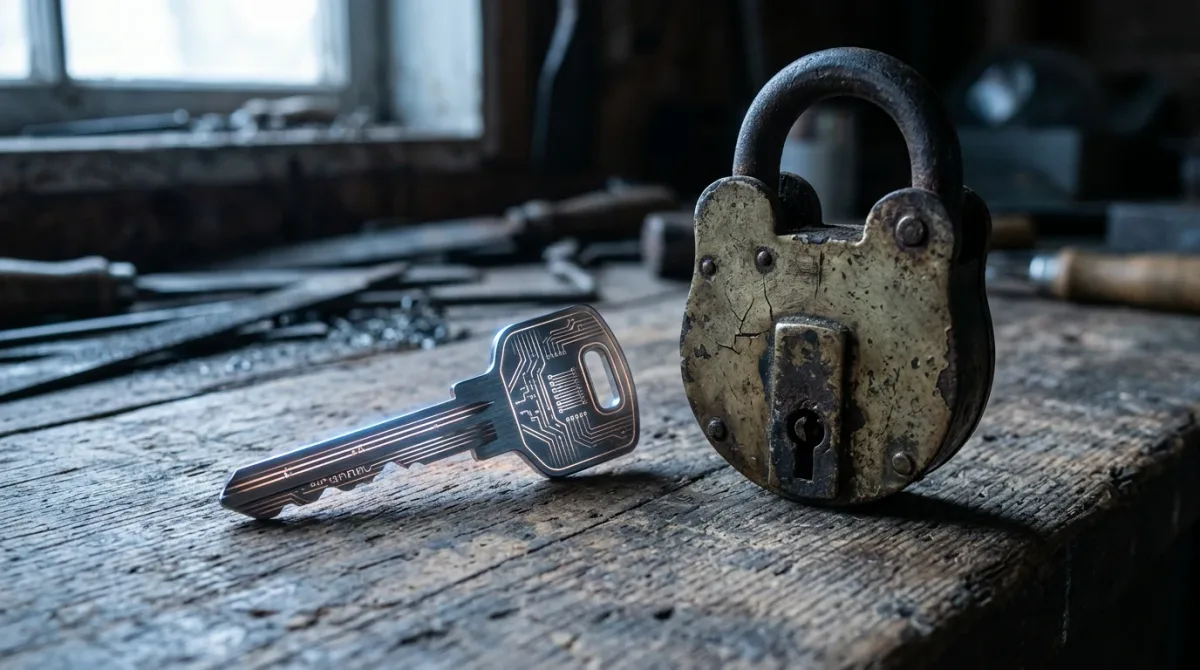
Yes — you can replace your password on most major accounts with a passkey in under five minutes, and it removes the single biggest weakness passwords have: nothing to steal. A passkey is a cryptographic key pair generated on your device; the private half never leaves it, so there is no password for a phishing page or a data breach to expose.
A passkey works differently from a password at the protocol level. When you register one, your device — a phone, laptop, or hardware security key — generates a matched pair of cryptographic keys. The public key goes to the website or app; the private key stays locked to your device, protected by the same screen lock, fingerprint, or face scan you already use, according to the FIDO Alliance, the standards body behind the technology (FIDO Alliance, passkeys overview, last modified August 14, 2026) [SRC-01]. Signing in means your device proves it holds the private key, without ever transmitting it. Apple's own explainer describes the same core mechanism: "the operating system creates a unique cryptographic key pair to associate with an account for the app or website," one key held by the device and one shared with the service (Apple Support, published September 16, 2024) [SRC-03].
Am I affected — do I need to switch right now?
No account is forced onto passkeys yet; most services still accept a password as a fallback. But if you reuse passwords, get phished occasionally, or manage accounts for a small business, switching now closes the exposure that a leaked or guessed password creates. Nothing breaks if you wait — passkeys are additive, not a replacement forced on you by a vendor deadline.
What does a passkey actually protect against?
Because a passkey has no shared secret to type or copy, it cannot be reused across sites the way a password can, and there is nothing for a phishing page to capture — the cryptographic exchange only completes with the real website. The FIDO Alliance's page cites an outside vendor figure — a "99.99% reduction in exposure to phishing and credential theft," attributed to Yubico — as an illustration of that gap, not an audited measurement of any single deployment [SRC-01]. What a passkey does not protect against: someone who has physical access to your unlocked device, or a compromised device where the operating system itself is untrustworthy. It is a defense against remote credential theft, not device theft.
How do you create a passkey for a Google account?
Google's support documentation lists the requirements plainly: Windows 10 or later, macOS Ventura or later, or ChromeOS 109 or later on a computer; Android 9 or later or iOS 16 or later on a phone; and a browser no older than Chrome 109, Safari 16, Edge 109, or Firefox 122. You'll also need a device screen lock turned on, since the passkey unlocks the same way your device does (Google Account Help, passkey support page) [SRC-02].
- Go to myaccount.google.com/signinoptions/passkeys in a signed-in browser.
- Select "Create a passkey," then confirm by selecting it again.
- Unlock your device when prompted — fingerprint, face scan, or PIN.
You'll see a confirmation that the passkey was created. That's the enrollment done — no further step needed on that device.
To register a hardware security key instead of a phone or laptop, choose "Create a passkey," then "Use another device," then insert the key and touch its sensor or enter its PIN when asked [SRC-02]. One documented catch worth flagging: Google's own page notes you may need to wait up to seven days before a newly created passkey is available at sign-in, so don't delete your password as a fallback the same day you enroll [SRC-02].
How do you create a passkey on an iPhone or Mac?
On Apple devices, passkeys are built into iCloud Keychain and sync across your signed-in devices once it's turned on. Apple's guidance describes the underlying registration step the same way: your device generates the key pair locally when you create a passkey for a supported app or website, and the private key is bound to that device (and to iCloud Keychain if syncing is enabled) rather than stored by the app or site itself [SRC-03]. For the exact tap-by-tap menu path on a specific iOS or macOS version, check the setting inside the app or website you're enrolling with — passkey creation is typically offered as an option the first time you sign in or from the account's security settings, and Apple's documentation does not lay out a single universal menu path because it varies by app.
Passwords, one-time codes, and passkeys compared
| Method | What's stored where | Phishing resistance | Setup effort |
|---|---|---|---|
| Password alone | Shared secret, typed on both ends | None — a fake login page captures it | Low |
| Password + one-time code (2FA) | Shared secret plus a time-limited code | Partial — a real-time phishing proxy can relay both | Low to moderate |
| Passkey | Private key stays on device; nothing shared to steal | High — cryptographic exchange fails on a non-matching domain | Low, one-time per device |
The comparison isn't about convenience alone. A one-time code still requires you to type or approve something a well-built phishing kit can relay in real time to the real site. A passkey's exchange is bound to the exact site domain by design, which is what removes that opening [SRC-01].
What should I do right now?
If your accounts still lean on a password alone, add a passkey to the ones that matter most — email, your primary cloud account, and anything tied to financial access — starting with whichever of Google or Apple you already use daily. Keep your password as a backup sign-in method until you've confirmed the passkey works, and remember Google's own note that a freshly created passkey can take up to seven days to become available at sign-in [SRC-02].
For a related security perspective, read KryptoGO Wins at ZK Hack, Heads to Japan for WebX .
For more context, read KryptoGO Wins at ZK Hack, Heads to Japan for WebX.