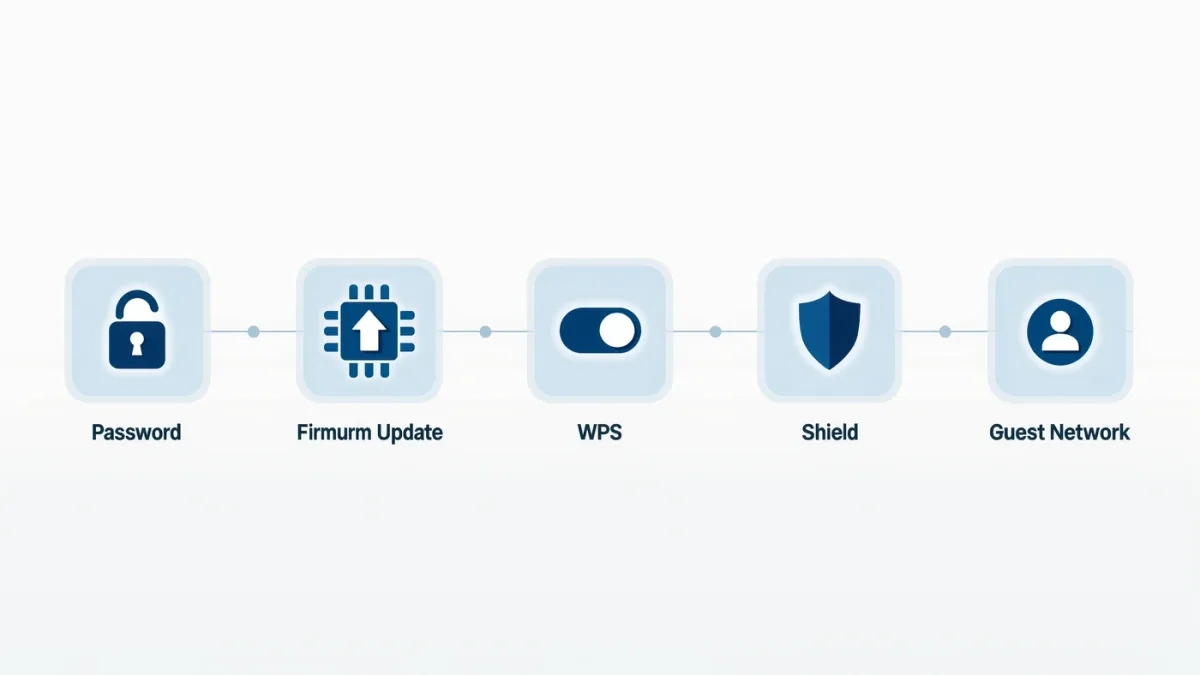
You can meaningfully secure a home router in half an hour with six changes: set a unique admin password, confirm WPA3 (or WPA2-AES) encryption with a long passphrase, install the latest firmware, disable remote administration and unused services, and check that WPS is off. Router flaws are a documented national-security concern — the FBI has repeatedly urged owners to reboot and update routers after botnet takeovers — because the device sits on every packet in and out of your home while almost nobody ever logs into it again after installation day.
Why do routers need attention at all?
Three reasons. First, exposed router management interfaces are a top target for botnets like the one the FBI disrupted in its repeated 2023-2025 Volt Typhoon and VPN-filter-era operations — compromised home routers get conscripted into crime and espionage networks with the owner never noticing. Second, router malware can spy on traffic and redirect destinations for every device behind it. Third, routers are appliances: owners rarely update them, so known-vulnerable firmware runs for years. Vendor notification — automatic updates where offered — is the single highest-value setting on the page.
Step 1: Get into the admin interface
Find the management address: it is printed on the router's label (commonly 192.168.0.1 or 192.168.1.1, or a named address like router.asus.com), along with the default admin credentials. Log in from a device on the network. If the label's password still works, that is the first problem to fix — default credentials for any given model are public knowledge.
Step 2: Set a unique admin password
Under Administration or System settings, replace the default with a strong unique password, stored in your password manager. The admin password is not the Wi-Fi password — it guards the router's configuration itself, and it should never be anything you have used anywhere else. While you are there, if the admin username can be changed from "admin" to something custom, change it.
Step 3: Check wireless security
Under Wireless or Wi-Fi settings:
- Encryption: choose WPA3 if every device supports it; otherwise WPA2/WPA3 transitional mode or WPA2-AES. Never WEP or open WPA — legacy modes that modern attacks break in minutes.
- Passphrase: a unique 15-plus character passphrase for your main network. Guests get the guest network (below), not this one.
- Network name: feel free to rename it, but do not put your address, surname, or unit number in the SSID — it broadcasts to every passerby.
- WPS: turn it off. The push-button convenience standard has a history of brute-force PIN vulnerabilities, and you can type a passphrase once per device instead.
Step 4: Update the firmware
Under Administration > Firmware Upgrade (wording varies), click Check for updates and install what is offered. Then find and enable automatic updates if the model supports them — that setting is what keeps you protected after this session ends. If the router is so old that firmware updates stopped years ago, that is the strongest argument for replacing it: end-of-life consumer routers are the backbone of residential botnets precisely because their flaws will never be fixed.
Step 5: Close the doors you do not use
- Remote administration / remote management: off, unless you genuinely administer the router from outside your home. This is the setting that, left on, exposes the admin login page to the whole internet.
- UPnP: consider disabling. It lets devices open inbound ports automatically, which is convenient for game consoles but equally convenient for malware. If something breaks, re-enable with eyes open.
- Telnet, SSH, and cloud management: off unless you use them knowingly.
- Guest network: turn it on for visitors and smart-home gear — it isolates untrusted devices from your computers, which we cover fully in our IoT isolation guide.
- DNS: optionally point the router at a filtering resolver, which we cover separately.
Step 6: Verify and set a reminder
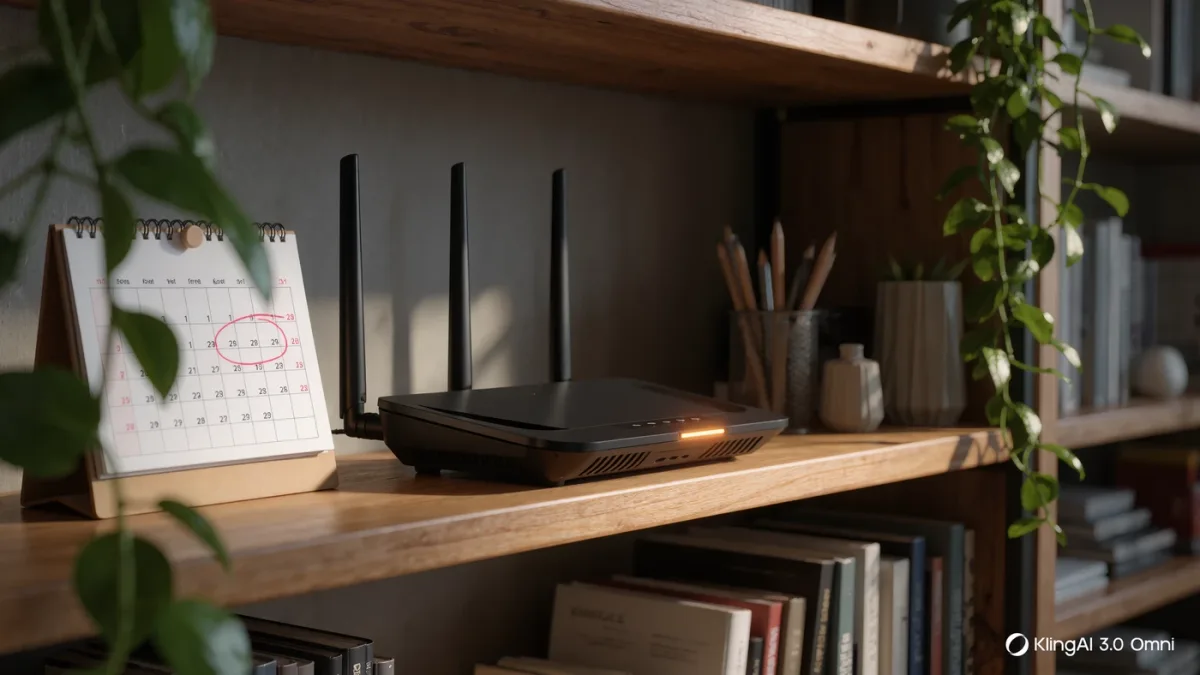
After saving everything, reconnect your devices and confirm internet access. Then set a six-month calendar reminder to log in once and check for firmware — or better, confirm automatic updates were on and let that be the end of it. Also save a screenshot or note of your settings: if the router ever resets, you will rebuild in ten minutes instead of an evening.
What about ISP-supplied routers?
Same checklist, with two caveats. The admin password may be managed by the ISP, and some ISP units expose management only through their app — in that case the app's security section is where the remote-administration and firmware settings live. If the box is several years old and the ISP has stopped shipping updates for it, request a replacement; you are paying for the service, and an unpatched gateway is a liability on your side of the connection.