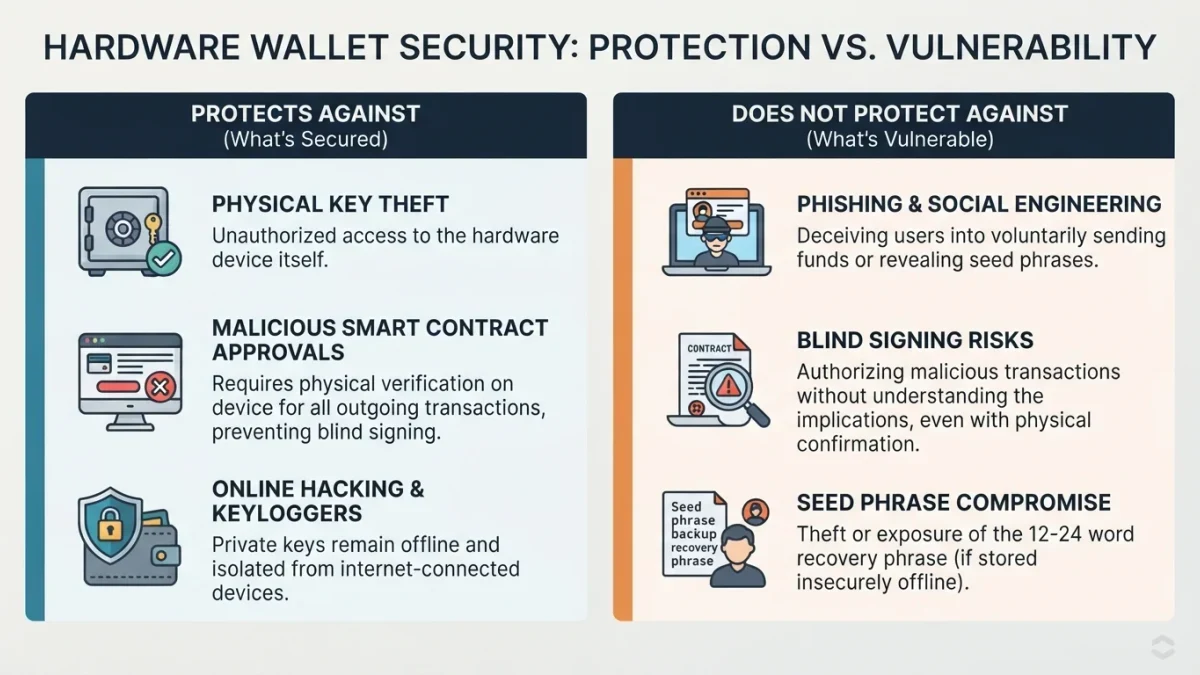
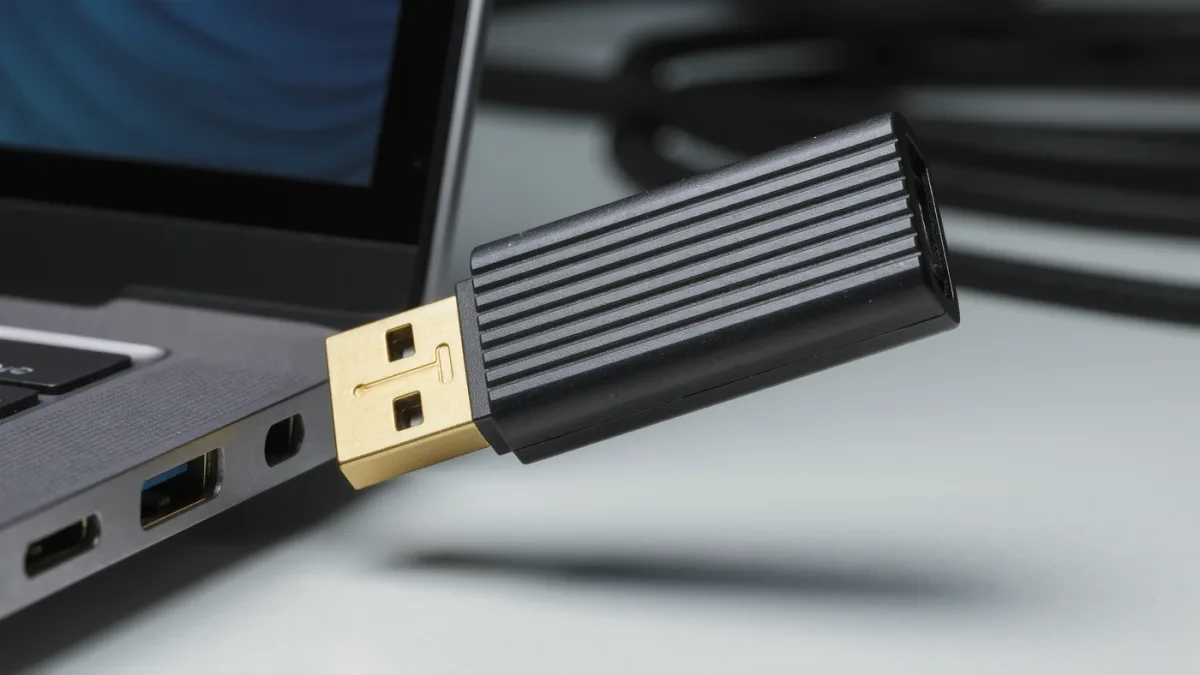
A hardware security key — a small USB or NFC device like a YubiKey, Titan Key, or Nitrokey — is the strongest practical two-factor authentication method available to consumers: you prove your identity by touching the key, and because the cryptographic exchange is bound to the real website domain, a fake login page cannot capture anything reusable. An attacker with your password and a convincing phishing site gets nothing, which is why Google reported in 2018 that keys defeated phishing for tens of thousands of its employees and has deployed them widely since. Buy two keys, register both on every account that supports them, and keep one in a drawer as the spare.
How does a key stop phishing when codes do not?
SMS and authenticator-app codes are generic six digits: whatever service you are "logging into" asks you to read them the code, and on a fake site, that is the attacker, live, relaying it to the real service. Security keys work on the FIDO2/WebAuthn standard instead, where your device cryptographically signs a challenge that includes the actual domain of the site requesting login. A phishing page at paypa1.com asks the key to sign for paypa1.com; your key has no credential for that domain and simply refuses. The credential itself is a key pair generated per site, whose private half never leaves the key — there is no code to read out, nothing to relay, and nothing stored on the site's servers that a breach can replay.
What should you buy?
Two decisions matter. First, interfaces: pick a key with USB-C (or USB-A for older machines) and NFC so it works with phones by tapping. Second, feature tier: standard FIDO2 keys run roughly $25-55 as of 2025; the premium tier adds fingerprint touch verification and the newer FIDO2 passkey-capable hardware for $10-25 more, which matters mainly if you want the key to store passkeys. Any FIDO2-certified key from Yubico, Google, or Nitrokey covers the standard use case; buy the same model twice so behavior is identical.
How do you set keys up?
The pattern is the same everywhere; the menu wording varies by service.
- Start with your email account — it resets everything else, so it goes first. In Google: myaccount.google.com > Security > 2-Step Verification > Security keys; in Microsoft 365 personal accounts: Security > Advanced security options > Add a new way to sign in.
- Insert or tap, touch, name. The site walks you through touching the key's gold contact. Name each key — "Office" and "Safe" — because you will manage several registrations.
- Register the second key immediately, on the same account. This is the step people skip and regret: keys are lost, washed, and snapped in USB ports. A single registered key plus no other method is a lockout waiting to happen.
- Keep one fallback method the service offers — printed backup codes in your safe, or an authenticator app — for the day the primary key is in a taxi.
- Repeat for banking, password manager, social, and cryptocurrency accounts. Apple ID, X, Facebook, GitHub, and most password managers all support keys natively.
What is daily use like?
Insert the key (or tap it to the phone's back), touch the gold area when it blinks, done — under three seconds, no typing, no transposing digits, no expired-code retry. Phones with NFC handle the tap; modern iPhones and Androids with USB-C accept the key directly. The keys need no battery, no charging, and no network. The one habit to build: the key lives somewhere predictable, because login now requires a physical object — a keyring or a pouch in the laptop bag is the usual home.
Where keys do not fit
Support remains uneven: many banks still offer only SMS codes, and some services accept keys only on paid tiers. Keys also do not sync between platforms the way passkeys in a password manager do — portability is the trade for the phishing resistance. The pragmatic stack for most people as of 2025: hardware keys on email, password manager, and financial accounts; passkeys or authenticator app everywhere else; SMS only where nothing better is offered. That ordering puts the unclonable physical factor exactly where a takeover would hurt most.
What if a key is lost or breaks?
This is what the spare is for: log in with the second key, open security settings, and remove the lost key's registration. If both are gone, you fall back to the printed codes or the recovery process — which is why the fallback method must exist before the emergency, not during it. For high-value accounts, some providers let you require a key and disable all other sign-in methods; choose that only when two keys plus printed codes are safely stored, because it turns account recovery into a deliberately slow, identity-checked process.