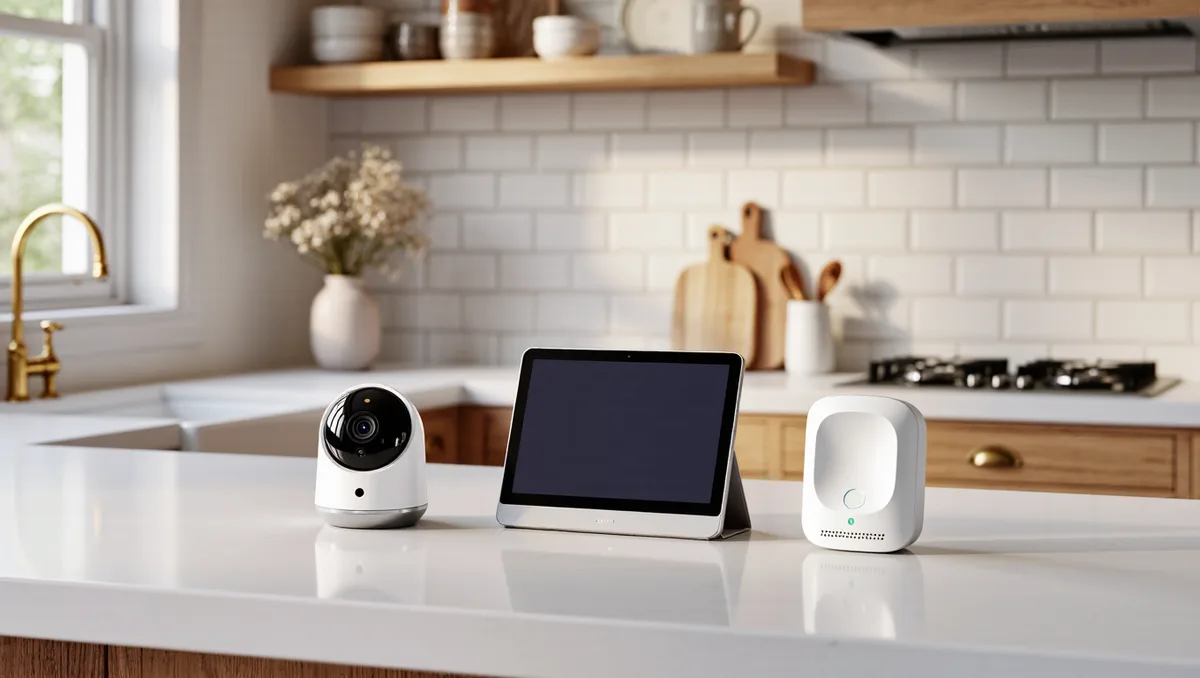

A smart speaker or camera does not have to listen and record around the clock to be useful. You can turn on the features you want, mute or unplug the ones you don't, and keep most of what these devices collect from ever leaving your home. The key is deciding, before you plug anything in, which features you actually need.
Most smart home privacy problems come from defaults, not from the device itself. Out of the box, a speaker is set to listen for its wake word, a camera may be set to upload clips to a cloud server, and the companion app is set to share usage data with the maker. Each of those defaults can be changed. This guide walks through the changes worth making, in the order that matters most.
One honest note before the steps: the exact menu names differ between brands and change with software updates. The steps below describe what to look for in the device's companion app. If a path looks different on your device, the setting is usually nearby under a privacy or account heading.
What should you decide before you buy or unbox a new device?
Start with a short list of what you want the device to do, and nothing more. A speaker that only sets timers needs far less access than one that reads your calendar and controls your door locks. A camera used to check on a package needs less than one used to watch a sleeping infant. Writing the list down helps, and there is a long-standing framework for exactly this kind of goal-setting. According to Wikipedia's overview of the SMART criteria, a goal works best when it is specific, measurable, and realistic — first proposed by George T. Doran in Management Review in 1981 — and the same discipline applies here: "the doorbell camera alerts me when someone is at the door" is a goal you can configure for; "the camera watches everything" is a default you accepted.
Two questions separate a device you can live with from one that overshares. First, does it need a microphone or camera at all for the job you listed? Second, does it need cloud storage, or can recordings stay on the device or on storage you control? Many makers now sell versions of the same product with local storage, and choosing that version up front removes a whole category of data collection later.
How do you set up a voice assistant with less listening?
Voice assistants work by listening locally for a wake word, then sending what follows to a server for processing. The settings that matter most reduce what is sent and how long it is kept. For related coverage, see How to turn on two-factor authentication for the accounts that matter most.
- Review voice history and turn off human review if offered. In the companion app, look for a section with a name like "voice history," "privacy settings," or "help improve [assistant]." Some makers let you opt out of having recordings reviewed by human contractors. That opt-out is a vendor-offered setting, not an independent guarantee, but it is worth taking if you are uncomfortable with the practice.
- Set how long recordings are kept. Many assistants let you choose between keeping voice history forever, keeping it for a fixed period, or not saving it at all. Choose the shortest option you can live with. You can usually delete saved recordings manually as well.
- Turn on the physical mute. Every major smart speaker has a hardware button or switch that electrically disconnects the microphone array. Use it during private conversations, and get in the habit of using it the way you close a door.
- Reconsider third-party skills and integrations. Each skill or connected service is another company receiving requests connected to your account. Install only the ones your list from the previous section actually requires.
- Check the wake-word sensitivity. If the speaker activates when nobody said the wake word, lower the sensitivity or move the device away from televisions and radios. False activations mean recordings of conversations nobody intended to send.
For a deeper dive on speakers specifically, our guide to smart speaker privacy settings covers each change in more detail.
What should you change on smart cameras and doorbells?
Cameras are the higher-stakes device, because a compromise or a misconfiguration exposes a view of your home rather than a stray sentence. Three settings carry most of the weight.
- Storage location. Cloud storage is convenient, but it means your footage sits on a company's servers, governed by that company's retention rules. Local storage — an SD card or a hub inside your home — keeps footage with you. Some devices support both; if yours does, prefer local for anything indoors.
- Activity zones. Most camera apps let you draw the area the camera should watch. Narrow it to the door or the yard, not the street, the neighbor's windows, or the whole room. This reduces both the recordings created and the notifications you ignore.
- Sharing defaults. Some apps default to sharing clips or live views with household members, or make highlights viewable in a community feed. Turn off anything you did not deliberately choose, and check who has access to the camera after any guest uses your account.
Placement matters too. A camera pointed at your own entryway is a security tool. The same camera angled toward a shared hallway or a neighbor's property raises questions that go beyond settings menus, and it is worth pointing it where you would be comfortable explaining it. This connects to our earlier piece, Email aliasing explained: give every service its own address.
Which account and network steps protect the whole setup?
Every smart device funnels through an account and a Wi-Fi network, and both need attention once, at setup.
- Use a dedicated email address. An alias or a separate address for smart home accounts keeps marketing mail and breach notifications out of your main inbox. Our explainer on email aliasing shows how to give each service its own address.
- Turn on two-factor authentication. The account behind your camera or speaker controls access to your home. Protect it the same way you protect email and banking. Step-by-step instructions are in our guide to turning on two-factor authentication.
- Audit what the app can see. Smart home apps often request location, contacts, and microphone access on your phone beyond what the device itself needs. A one-time pass through your permissions closes that gap; see how to audit your app permissions.
- Put smart devices on a separate network. If your router offers a guest or IoT network, placing these devices there means a problem with one gadget does not reach your laptop or work files. This is a general hardening practice, not a fix for any specific flaw.
What does this mean for the devices you already own?
Our analysis: you do not need to replace anything to benefit here. The steps above apply to a device bought years ago as fully as to a new one, because they live in the app and the account rather than the hardware. Run through them once — voice history, storage location, activity zones, account security — and then set a reminder to recheck after major app updates, since updates sometimes reset preferences or add new data-sharing toggles. If a device offers no way to disable a feature you do not want, that is a fact worth knowing before your next purchase, and the honest response is to stop using that feature or the device, not to assume a setting exists somewhere.
None of this makes a smart home private in the way a home without connected devices is private. A microphone that listens for a wake word is still a microphone; a camera is still a camera. The goal is narrower and achievable: you decide what is collected, you keep what you can local, and you know exactly what you have agreed to. That is the difference between a device that serves you and one that quietly files reports about you.